A wedding meal choice spreadsheet needs one row per attending person when members of the same household can choose different meals. Record the guest name, household, attendance status, meal choice and table. Count only confirmed attendees, then reconcile their meal selections with the final headcount before sending the list to your caterer.
The layout and formulas below are a DIY Excel example. All names and selections are fictional. Ask your caterer which fields and labels they need, and use their actual deadline rather than assuming every venue follows the same schedule.
Keep household RSVPs and individual meals at different levels
One household can contain three accepted guests who choose three different meals. A household RSVP row is useful for invitations and party sizes; it cannot identify those separate choices by itself. Keep a person-level meal list linked by the same household name or ID.
Our guide to household RSVP counting explains why counting response rows is different from counting people. Use the accepted people total as the check against your meal list.
Enter every accepted person once in the meal list. If a plus-one's name is unresolved, use a unique temporary label and follow up. Do not create a second row when the name is later confirmed. Keep declined or pending people identifiable so they are excluded from confirmed meal totals.
Copy this column layout
- A: Guest name or unique guest label.
- B: Household name or ID that matches the RSVP list.
- C: Attendance. Use Accepted, Pending or Declined consistently.
- D: Meal choice. Use the exact menu labels agreed with your caterer.
- E: Table name or number.
- F: Dietary notes supplied by the guest, where relevant to the meal.
- G: Confirmation or follow-up note.
Put the headers in row 1 and start guests in row 2. Ask the caterer how to record children, supplier meals and anyone not taking a standard meal. Use an explicit agreed category for those cases so a blank choice still means that you need to check something.
Keep the meal choice separate from dietary notes. Someone selecting a vegetarian dish may also have a separate dietary requirement. Pass the guest's relevant information to the caterer and ask them to confirm the arrangement; a spreadsheet label does not establish that a meal is suitable.
Test the counts with five fictional guests
- Row 2: Alex | H01 | Accepted | Chicken | Table 1.
- Row 3: Morgan | H01 | Accepted | Vegetarian | Table 1.
- Row 4: Jamie | H02 | Pending | Chicken | table blank.
- Row 5: Casey | H03 | Accepted | meal choice blank | Table 2.
- Row 6: Taylor | H04 | Declined | Vegetarian | table blank.
There are three accepted guests. Their current choices are one Chicken, one Vegetarian and one missing choice. The pending Chicken selection and declined Vegetarian selection must not inflate the confirmed meal order.
Count confirmed meals with COUNTIFS
For this DIY layout, use rows 2 through 301. Put the summaries outside the guest list. To count accepted Chicken choices:
=COUNTIFS(C2:C301,"Accepted",D2:D301,"Chicken")
For accepted Vegetarian choices, replace Chicken with Vegetarian. Add one summary for each exact menu label you actually offer. With the example above, each of these two summaries returns 1.
To count accepted guests still missing a meal choice:
=COUNTIFS(C2:C301,"Accepted",D2:D301,"")
That result is 1 for the example. A cell containing spaces is not a truly blank choice, so review inconsistent entries as well as the formula. Use consistent labels or an Excel dropdown list to reduce typing differences.
To count all accepted guests in the person-level list:
=COUNTIFS(C2:C301,"Accepted")
The result is 3. Your meal-category counts plus missing choices should reconcile to this accepted total when each person has exactly one category. If the categories plus blanks total only 2, look for a misspelled or unexpected label rather than assuming the list is complete.
The formulas follow Microsoft's COUNTIFS guidance. All criteria ranges must have matching dimensions. Extend every range together if your list grows. Some Excel regional settings require semicolons instead of commas.
Check meals by table before sharing the list
Add the table as another condition when the caterer needs counts by table. For accepted Chicken meals at Table 1:
=COUNTIFS(C2:C301,"Accepted",D2:D301,"Chicken",E2:E301,"Table 1")
This returns 1 for the example. Use the exact table label stored in column E. When sorting, select the entire guest list so names, choices and tables stay on the same rows.
Compare the accepted people and table assignments with your seating plan. Our seating capacity guide covers overfilled tables and unassigned guests.
Prepare a clear catering handoff
Confirm the required format, final-count deadline and who can approve later changes. Review missing choices, unassigned tables and unresolved dietary notes. Reconcile the person-level count with accepted household party sizes, and keep supplier meals or other categories identifiable in the way the caterer requests.
Send a dated copy containing the fields the caterer needs. Keep unrelated contact details and gift records out of that export. If something changes afterward, state exactly which guest, table or count changed and confirm the recipient received the revision.
What does the Kourchal workbook include?
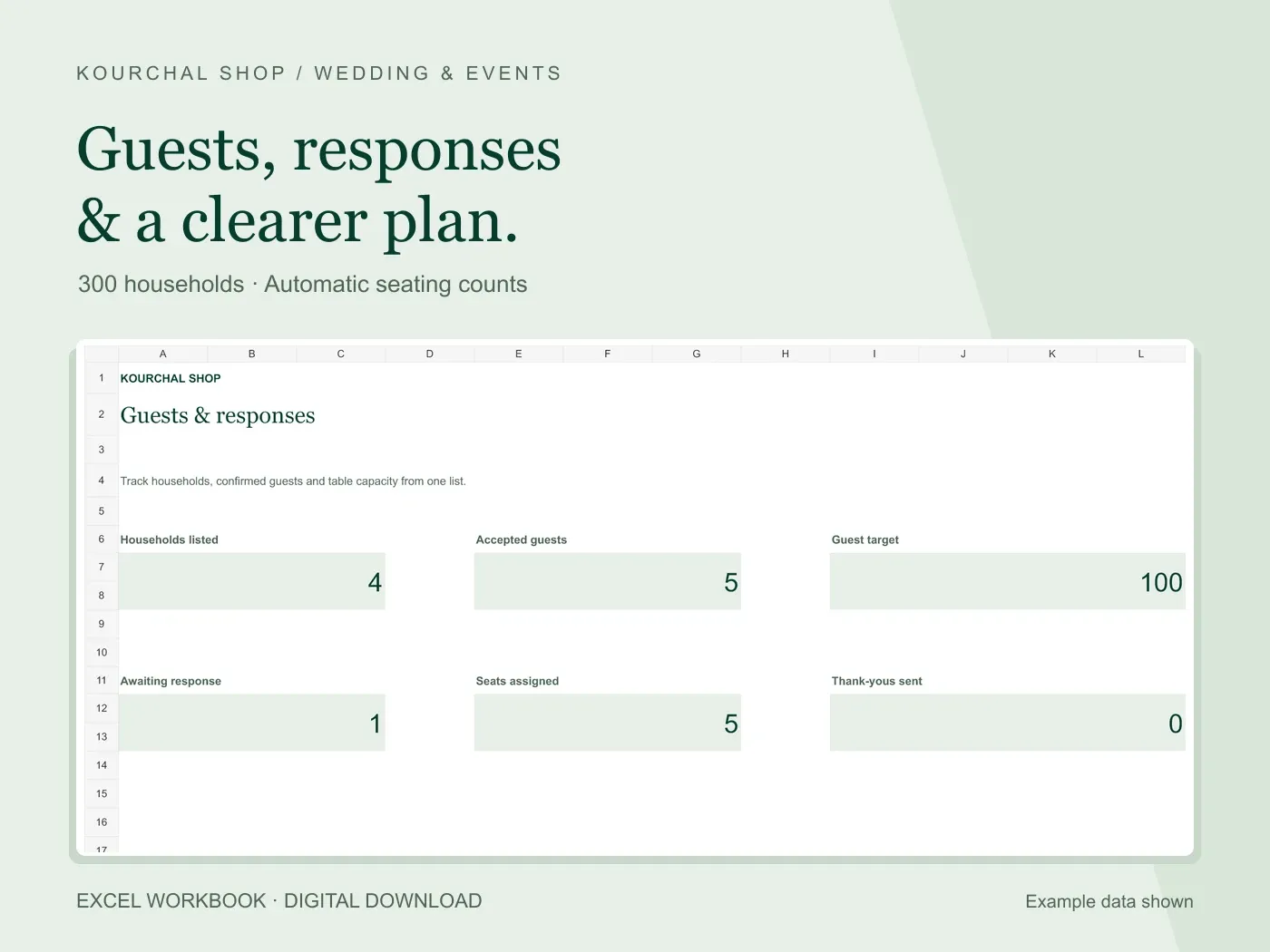
The Wedding Guest List & RSVP Tracker organizes household RSVPs, accepted party sizes, seating, dietary notes and gift follow-up. It does not include the automatic person-level meal-count sheet shown here. Keep this DIY meal list separately if individual choices are needed.
That distinction matters when choosing a template: household attendance totals, seating totals and meal-category totals answer different questions. Pick a layout that matches the records you need to maintain.
Quick answers
Can I put one meal choice against an entire household?
Only when that single choice accurately represents every relevant person and the caterer accepts the format. A person-level list is clearer when household members choose different meals.
Should pending guests count in the final meal total?
Keep them separate from confirmed selections. Agree any planning allowance or final-order changes with your caterer.
Is a dietary note the same as a confirmed meal?
No. Record the information accurately and confirm the practical arrangement with the caterer. Keep the selection, dietary note and follow-up distinct.
Before your next vendor payment.
A free wedding payment checklist to help you check what is agreed, what you have paid and what is due next.
- Check the agreed cost.
- Account for payments already made.
- Confirm the next amount and due date.
A printable checklist, separate from our paid Excel workbooks. No purchase needed.