A wedding gift tracker spreadsheet records who gave a gift, what arrived, when it arrived and whether you have sent a thank-you. Keep one row per gift and use a consistent giver name. This gives you a practical writing list without relying on memory after cards, deliveries and wrapping have been separated.
You can build the layout below in a blank Excel sheet. The formulas are a DIY example, separate from the prepared Kourchal workbook. All names and gifts in the example are fictional.
Copy these columns into a blank Excel sheet
- A: Gift ID. Use a unique label such as G001 so similar gifts do not get confused.
- B: Giver or household. Record the names you need for the thank-you.
- C: Gift description. Write enough detail to recognize the item or contribution.
- D: Date received. Enter an Excel date when the gift arrives.
- E: Thank-you status. Use Not started, Written or Sent.
- F: Date sent. Complete this when you actually send the note.
- G: Owner. Name the person responsible for writing or sending it.
- H: Notes. Keep useful details or unresolved questions here.
Type the headers in row 1 and start your records in row 2. Keep dates as dates, not sentences. Use the Notes column for delivery questions and follow-up. Select the whole list when sorting so the giver, gift and status stay together.
Work through four example gifts
- Row 2: G001 | Rowan household | Serving bowl | 1 October 2026 | Sent | 3 October 2026 | Partner A.
- Row 3: G002 | Alex Chen | Contribution | 2 October 2026 | Written | date sent blank | Partner B.
- Row 4: G003 | Sam and Taylor | Linen set | 4 October 2026 | Not started | date sent blank | Partner A.
- Row 5: G004 | Giver not yet identified | Book set | 4 October 2026 | Not started | date sent blank | Partner B.
This list contains four received gifts, one sent thank-you and three remaining thank-yous. The note marked Written remains open because it has not been sent. For G004, keep the sender question visible and resolve it before guessing whom to thank.
Count thank-yous still to send
With Gift IDs in A2:A301 and status in E2:E301, enter this formula in a summary cell outside the list:
=COUNTIFS(A2:A301,"<>",E2:E301,"<>Sent")
The formula counts rows that have a Gift ID and are not marked Sent. It includes a blank status on an existing record, which helps unfinished entries remain visible. Empty prepared rows are excluded because they have no Gift ID. With the four examples above, the result is 3.
If you add more than 300 records, expand both ranges to the same final row. The English Excel formula uses commas; some regional settings use semicolons. Keep status labels consistent, particularly avoiding extra spaces after Sent.
For the function syntax and matching rules, see Microsoft's COUNTIFS documentation.
Handle group gifts and gifts from guests who could not attend
Record a joint gift once in the gift log and include all giver names. If several people need separate notes, keep a second thank-you task list with one row per note and the Gift ID linking it to the original record. Do not count the same gift several times merely to track several messages.
Someone who declined the invitation can still send a gift. Keep gift follow-up separate from RSVP status so filtering accepted guests does not hide their record. Equally, a blank gift entry is not a reason to chase a guest for a present.
An amount is optional. Record an actual contribution only when it helps your own recordkeeping; you do not need to estimate the price of a physical gift to write a personal thank-you. Avoid putting payment details in a file shared with helpers.
Keep the guest list and gift log consistent
Use the same household labels as your invitation list. Our household RSVP counting guide explains how household rows and attending people differ.
Choose one maintained file and one person to reconcile changes. When a gift arrives, record it before separating the card. Before a writing session, filter statuses that are not Sent. After sending, update both the status and sent date, then save the file.
Can I use the Kourchal workbook for this?
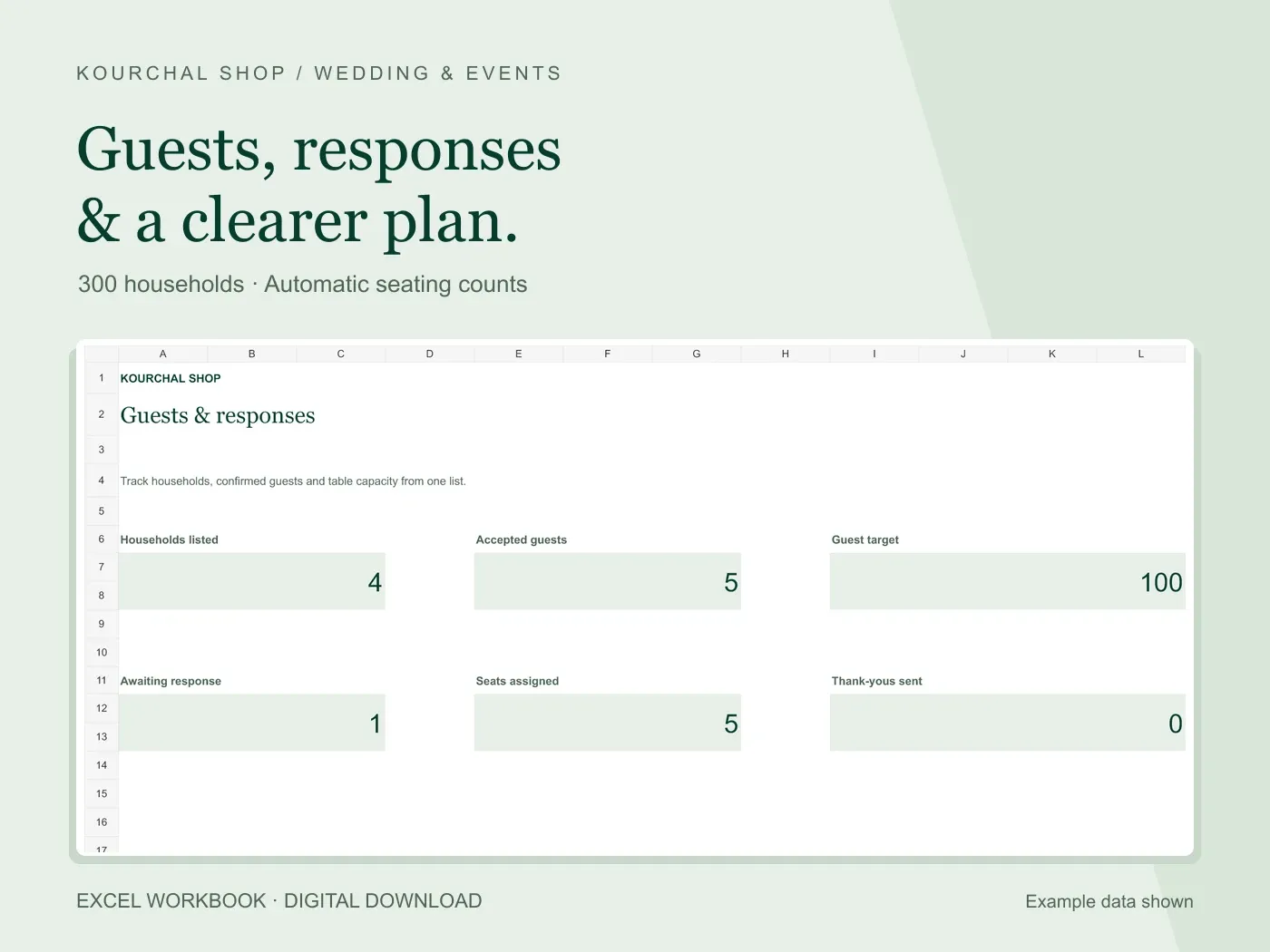
The Wedding Guest List & RSVP Tracker includes a separate gift and thank-you sheet alongside household RSVPs and seating. View the real workbook previews to check the prepared layout. The DIY column letters and formula above describe a sheet you build yourself, not instructions to overwrite the workbook's cells.
Choose a simple DIY log if gift tracking is your only task. Choose the prepared Excel workbook if you also want household counts and seating together. You maintain the entries and send the messages yourself; the file does not send cards or emails.
Quick answers
Should I use one row per guest or one row per gift?
Use one row per gift in the gift log. Use one row per required note in a separate task list when a group gift needs several thank-yous.
Does Written mean the thank-you is finished?
Keep it open until it is sent. Distinguishing Written from Sent prevents a completed draft from disappearing from your remaining work.
Can I keep gifts in my RSVP spreadsheet?
Yes, if the file has a separate gift area or clear fields. Keep gifts from non-attending guests visible and avoid changing attendance counts to record a present.
Before your next vendor payment.
A free wedding payment checklist to help you check what is agreed, what you have paid and what is due next.
- Check the agreed cost.
- Account for payments already made.
- Confirm the next amount and due date.
A printable checklist, separate from our paid Excel workbooks. No purchase needed.