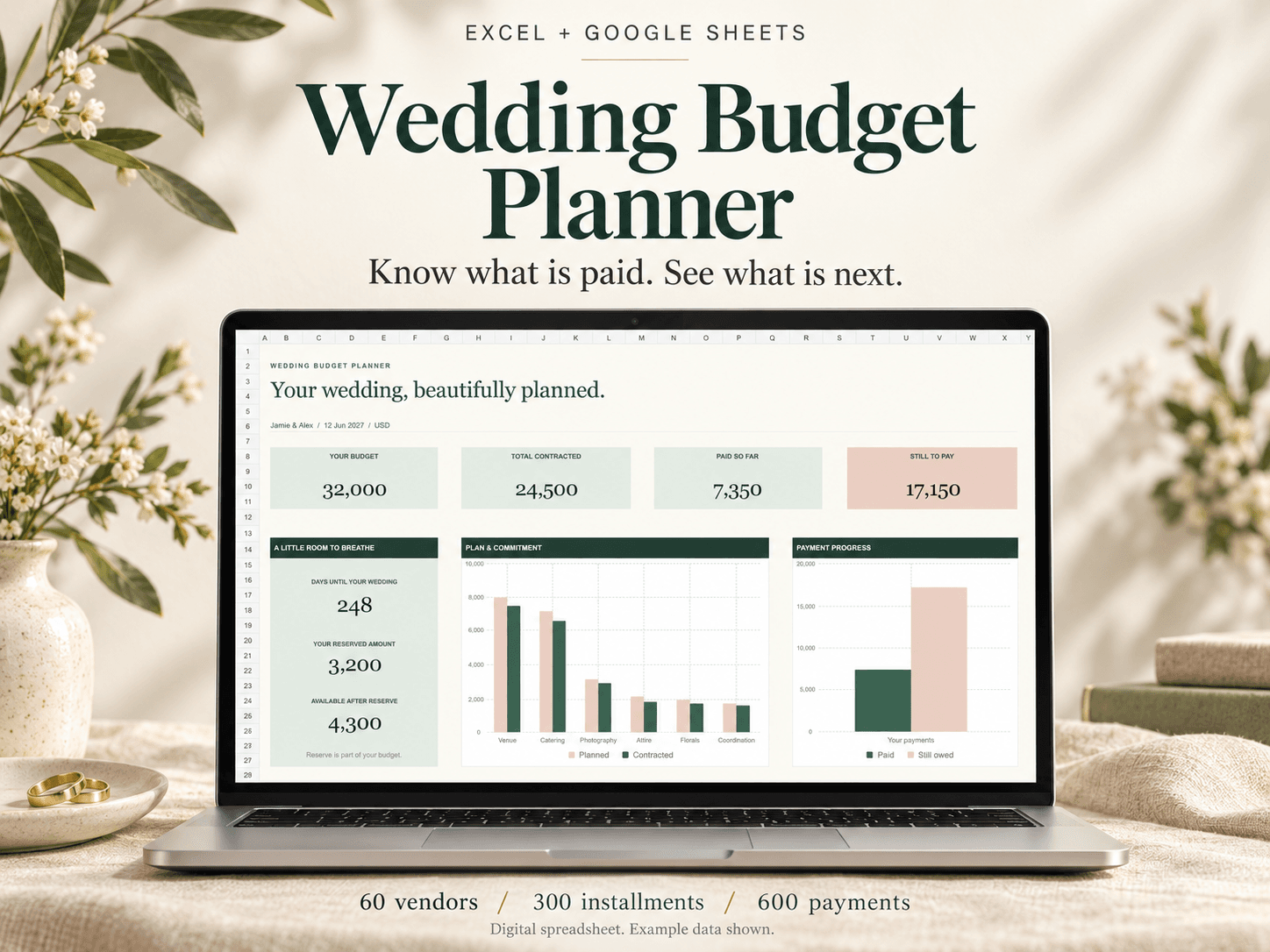
To use a wedding budget spreadsheet in Google Sheets, start with a compatible XLSX, upload it to your own Google Drive and convert it into a native Google Sheet. Keep the original download as a backup. Then check the tabs and payment calculations before entering your real wedding details.
This guide covers the setup of Kourchal Shop's Ultimate Wedding Budget Planner, an eight-tab workbook with vendors, installment schedules, actual payment logs and contributor totals. It is a paid download, not a free Google template or a pre-shared spreadsheet link. A Google account is required. Our original Wedding Budget Planner is a separate product whose Google Sheets compatibility has not been verified.
Convert the workbook into a native Google Sheet
1. Extract the ZIP download on your computer. Keep Wedding-Budget-Studio.xlsx and the matching PDF quick-start guide together. Upload the XLSX workbook, rather than the ZIP or PDF, to your own Google Drive.
2. Open the uploaded workbook with Google Sheets. If you see a Drive preview first, choose Open with Google Sheets. Opening an Excel file in Sheets can still leave it in Excel format, so opening and converting are different steps.
3. Choose File > Save as Google Sheets. Drive keeps the original Excel file and creates a native Sheets version. Give the working version a clear name, such as Wedding budget - working copy, so you do not update two different budgets by mistake.
Google explains this distinction in its official Excel-to-Sheets conversion instructions. Keep your original XLSX as a backup and use the converted Sheet for day-to-day updates.
Check the eight tabs and input cells
The Ultimate planner contains Dashboard, Setup, Budget, Vendors, Payment Plan, Payment Log, Contributors and Moodboard. Check that all eight tabs are present. The delivered workbook starts clean; product previews show fictional example figures.
Start in Setup and choose one currency label. The label does not convert amounts. If one supplier quotes in another currency, resolve the amount you will record before combining it with the rest of your budget. Mixing unconverted currencies produces an unusable total.
Peach cells are inputs; pale-green cells contain calculations. Enter values in the input cells and keep formulas and stable IDs intact. Use the supplied rows rather than deleting or rearranging individual cells. If a number looks wrong, check the entries behind it before replacing a formula.
Enter planned costs, vendors and payments in order
Begin with your budget categories and planned amounts. Then enter your vendors and their agreed costs. Keep a planned allowance separate from a supplier's contracted amount: an early estimate is not proof that a supplier has agreed to that price.
Use Payment Plan for scheduled installments and due dates. Use Payment Log for payments that actually happened. Match each logged payment to the correct vendor and contributor IDs, and to the installment where applicable. Names and totals use those linked records.
A scheduled deposit is not a completed payment. If a supplier's total is 1,200 and you have actually paid 300, the supplier balance is 900. Putting the scheduled 300 deposit in the payment log before paying it would make the budget appear more paid than it is.
For a full fictional deposit example, read our wedding vendor payment tracker guide. Use the supplier's actual agreement to determine payment dates; a spreadsheet cannot decide those terms for you.
Run a small payment check before relying on totals
Use a separate working copy for a fictional check. Enter a test vendor, contributor and payment using the workbook's input cells and IDs. If you change a logged payment from 250 to 400, the paid amount for that vendor and contributor should increase by 150. The vendor's remaining balance should fall by 150 while its agreed cost stays unchanged.
Check the Dashboard as well as the vendor and contributor rows. If the change is missing, inspect the chosen IDs and any row-status message. If a formula cell shows an error after importing or editing, restore a clean copy and compare the inputs before using the totals for a real payment.
Remove only the fictional input values after your check, keeping formula cells and IDs in place. Confirm that the paid totals return to their expected clean state. This is a practical check for your own imported copy, not a substitute for comparing actual transactions with supplier receipts.
Keep contributor promises separate from actual payments
The Contributors tab supports up to 12 people and compares promised amounts with payments recorded against them in Payment Log. Its paid totals represent payments to vendors, not money deposited into a shared bank account.
If a parent transfers money to you and you then pay a vendor, do not count both movements as vendor payments. The Ultimate planner does not reconcile family transfers or provide a per-expense allocation check. Keep a separate transfer record where that is needed.
If you need agreed shares for each expense, use the DIY layout in our wedding cost-splitting guide. That layout and the prepared contributor-payment totals solve different parts of the problem.
Maintain one shared working copy
Choose one native Sheet as the working budget and agree who updates supplier costs and payments. Give editing access to the people responsible for maintaining it. Review the same copy together rather than circulating separate XLSX files with different balances.
Before the next supplier payment, compare the logged amounts with receipts, confirm the remaining vendor balance and check the due date in the supplier agreement. Upcoming and overdue amounts are displayed in the Ultimate workbook; it does not send automated emails, calendar reminders or make payments.
Which Kourchal budget planner works in Google Sheets?
The Ultimate Wedding Budget Planner is the eight-tab option listed for Excel and Google Sheets. It includes the XLSX and a PDF quick-start guide; you upload and convert the workbook in your own Drive. Inspect its previews, current price and included features before choosing it.
The original Wedding Budget Planner remains available separately. Do not assume that an import method or a compatibility statement for the Ultimate planner applies to every other workbook. The original planner's Google Sheets compatibility has not been verified.
Before your next vendor payment.
A free wedding payment checklist to help you check what is agreed, what you have paid and what is due next.
- Check the agreed cost.
- Account for payments already made.
- Confirm the next amount and due date.
A printable checklist, separate from our paid Excel workbooks. No purchase needed.