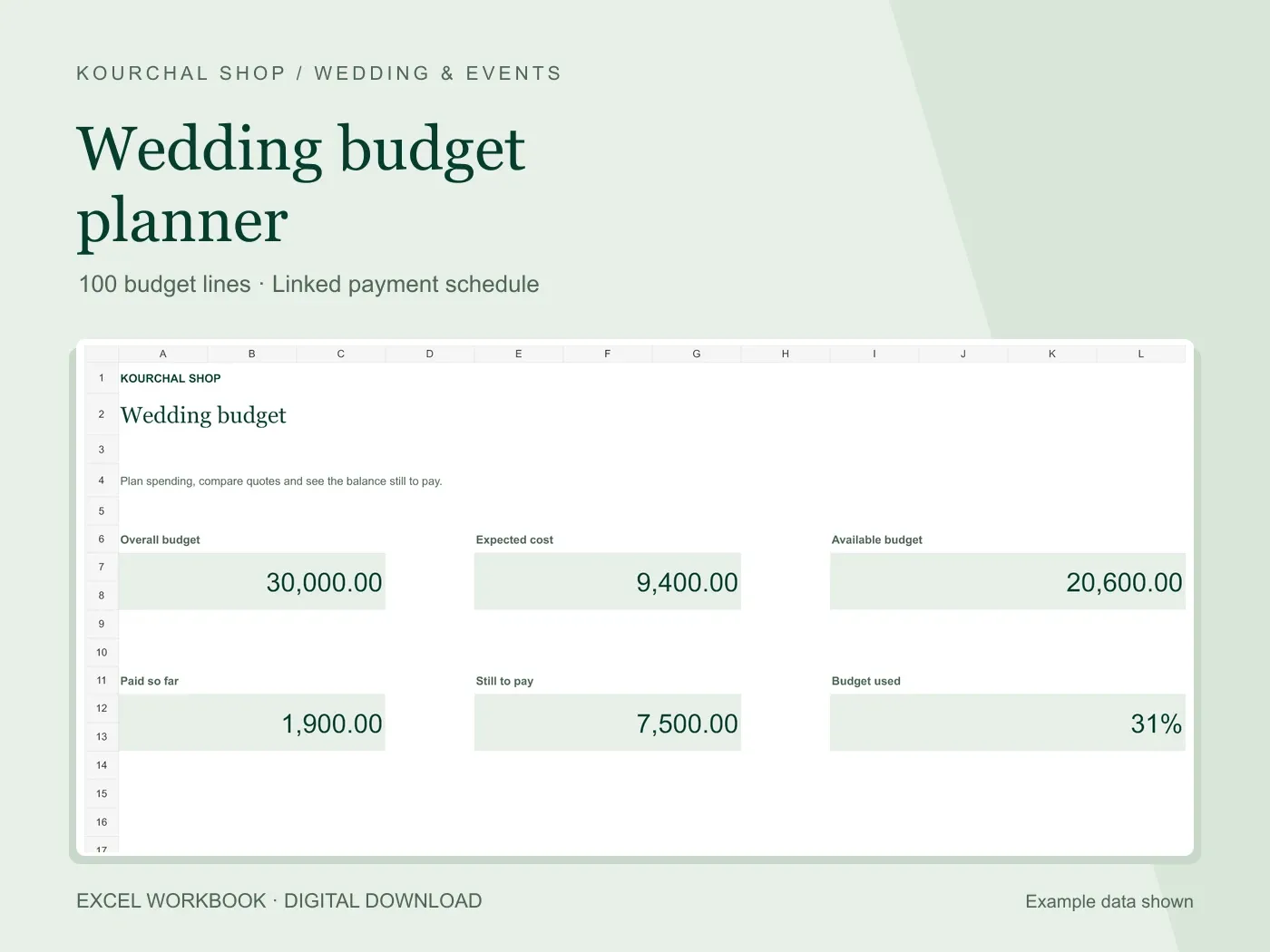
A wedding vendor payment tracker should tell you who needs paying, how much remains and when the next payment is due. A supplier quote alone cannot answer those questions. Keep the agreed cost separate from the money you have already paid, then calculate the difference.
You can build the simple version in your own spreadsheet. If you want prepared formulas and a linked dashboard, the Kourchal Shop Wedding Budget Planner includes this workflow. This guide uses illustrative amounts in one currency; they are not suggested wedding prices.
Start with seven payment fields
Use one row per cost or supplier agreement. Give it a category, supplier name, estimate, confirmed quote, deposit paid, other payments paid and next due date. Add a notes field for a receipt reference or the next action. Do not store bank credentials or card information in the workbook.
An estimate is a planning placeholder. A quote is the expected total for that line. A deposit belongs in a payment column. Keeping these separate lets you update a quote without accidentally changing the payment history. If a supplier has not quoted yet, leave the quote blank rather than entering zero.
For a simple sheet, calculate Paid total as Deposit paid plus Other paid. Calculate Balance as Expected cost minus Paid total. Review the signed agreement separately: the sheet records your entries and does not decide contractual payment terms.
A deposit example that avoids double counting
Suppose a decoration supplier quotes 1,200. You pay a deposit of 200, followed by another payment of 100. Enter Quote = 1,200, Deposit paid = 200 and Other paid = 100. The paid total is 300 and the balance is 900.
The common mistake is entering 300 in Other paid as well as 200 in Deposit paid. That would show 500 paid and a balance of 700, even though only 300 has left your account. Other paid should contain payments after the deposit, not the cumulative total including it.
If you make several later payments, keep a separate receipt log and update Other paid with their combined amount. For example, later payments of 100 and 250 make Other paid 350. With the original 200 deposit, Paid total becomes 550 and the balance becomes 650.
Turn balances into a practical payment schedule
Add the next due date from the supplier agreement. Review the date together with the balance and the notes. If the next installment is only part of the balance, write the agreed installment amount in the notes. Do not assume the whole remaining balance is payable on the next date.
The Kourchal planner links 100 prepared budget rows to 100 payment-schedule rows. It records a next due date for each budget line. It does not generate a separate row for every installment or send payment reminders. After making an installment, update the paid amount and next date yourself.
Sort or filter the entire payment table when reviewing upcoming dates. Sorting dates alone can attach the wrong date to a supplier. Keep a dated backup before changing the structure or moving rows.
Use a short review after every new quote or payment
Check the quote against the supplier agreement, match the payment to a receipt, and review the next due date. Then check the dashboard totals. A negative balance deserves investigation: it may be an overpayment, a refund still to record or a typing error. Do not hide it by forcing the balance to zero.
A blank quote and a zero quote mean different things. In our workbook, a blank quote uses the estimate, while an explicit zero remains zero. That helps keep unconfirmed costs visible without turning genuinely free items into paid ones.
Build your own sheet or use the prepared workbook
A basic sheet can work well if you are comfortable maintaining formulas. The paid Wedding Budget Planner adds the prepared budget table, linked payment schedule, dashboard and Start Here instructions. It costs $4.99 before any applicable checkout taxes and includes an Excel .xlsx file, a Quick Start PDF and a personal-use license.
Use Microsoft Excel and keep the prepared calculation cells intact. Google Sheets compatibility has not been verified. Choose the tool for its fit with your workflow, then keep one maintained copy so two payment lists do not drift apart.