To split wedding costs in a spreadsheet, record each supplier cost once, then keep contributor shares and actual supplier payments in separate lists. The shares should add up to the agreed cost. Money transferred between family members is not a second payment to the supplier.
This guide shows a small DIY Excel layout for a couple and family contributors. It records the arrangement you agree together; it does not decide who should pay. All figures are fictional and use one currency. The contributor layout below is not an included feature of our paid Wedding Budget Planner.
Use one cost ID instead of duplicating an expense
Create a Costs sheet with these columns: A Cost ID; B Description; C Agreed cost; D Paid to supplier; E Supplier balance. Give each expense a unique ID such as V001. Keep the decoration supplier's full cost on one row even when two people share it. Adding the same full cost on a second row would inflate your wedding total.
Create an Allocations sheet: A Cost ID; B Contributor; C Agreed share; D Direct supplier payments; E Share not yet paid directly. Use one row per contributor for each cost. Choose consistent labels such as Couple and Family A. You can add another contributor without changing the supplier cost.
Create a Payments sheet: A Receipt reference; B Cost ID; C Paid by; D Amount. Record one row for each actual payment to a supplier. Use the receipt reference to identify duplicates. This list contains supplier payments only, not promises or transfers between contributors.
Worked example: two contributors, one supplier
In Costs row 2, enter V001, Decoration and an agreed cost of 1,200. In Allocations, enter V001 / Family A / 700 and V001 / Couple / 500. The two shares total 1,200. The wedding cost remains 1,200, not 2,400.
Family A pays the supplier a deposit of 200. The couple later pays the supplier 100. Record those as two Payments rows: R001 / V001 / Family A / 200 and R002 / V001 / Couple / 100. Supplier payments total 300, leaving a supplier balance of 900.
In this direct-payment example, Family A has 500 of its agreed share left to pay and the couple has 400. Their outstanding shares total the supplier's 900 balance. These figures do not tell you when the payments are due; use the actual supplier agreement.
Excel formulas for supplier balances
On Costs, put this formula in D2 to total payments matching the cost ID in A2:
=SUMIFS(Payments!$D$2:$D$301,Payments!$B$2:$B$301,A2)
In E2, subtract supplier payments from the agreed cost:
=C2-D2
On Allocations, D2 can total direct supplier payments matching both the cost and contributor:
=SUMIFS(Payments!$D$2:$D$301,Payments!$B$2:$B$301,A2,Payments!$C$2:$C$301,B2)
Use =C2-D2 in Allocations E2 for the share not yet paid directly. Copy the formulas down for your rows. These examples cover Payments rows 2 through 301; extend every referenced range together if needed. Enter numeric amounts, not text containing currency labels. Excel installations using semicolon separators will need semicolons instead of commas.
Microsoft's SUMIFS documentation explains how the matching ranges work. The arithmetic example has been checked; this guide does not claim a native Excel execution test.
Check that every cost is fully allocated
Before treating the plan as complete, add a temporary allocation check on Costs. For row 2, the result below should be zero when all contributor shares match the agreed cost:
=C2-SUMIFS(Allocations!$C$2:$C$301,Allocations!$A$2:$A$301,A2)
For V001, 1,200 minus 700 minus 500 is zero. A result of 100 means 100 has not been allocated. A negative result means the agreed shares exceed the cost. Review the entries instead of forcing the result to zero. When a quote changes, review the contributor agreement as well as the overall budget.
Keep family transfers separate from supplier payments
If Family A transfers 200 to the couple and the couple pays that 200 to the supplier, the supplier has received 200, not 400. Record the supplier payment once under the actual payer. Keep the family transfer and its purpose in a separate settlement log.
In that situation, the direct-payment contributor formula above does not measure each person's final contribution. Reimbursements and shared funds require reconciliation against the settlement log. Do not use the direct-payment share balance to demand money from someone who has already transferred it. Confirm the arrangement and reconcile both records together.
Use a weekly reconciliation before the next payment
Match supplier payments to receipts, check allocations against current costs and review the next agreed installment. Preserve negative balances so overpayments remain visible. Keep one maintained copy and back it up before sorting complete tables or changing formulas.
For the supplier side, see our vendor payment tracker example and free vendor balance calculator. For unconfirmed extras, use the hidden wedding costs checklist.
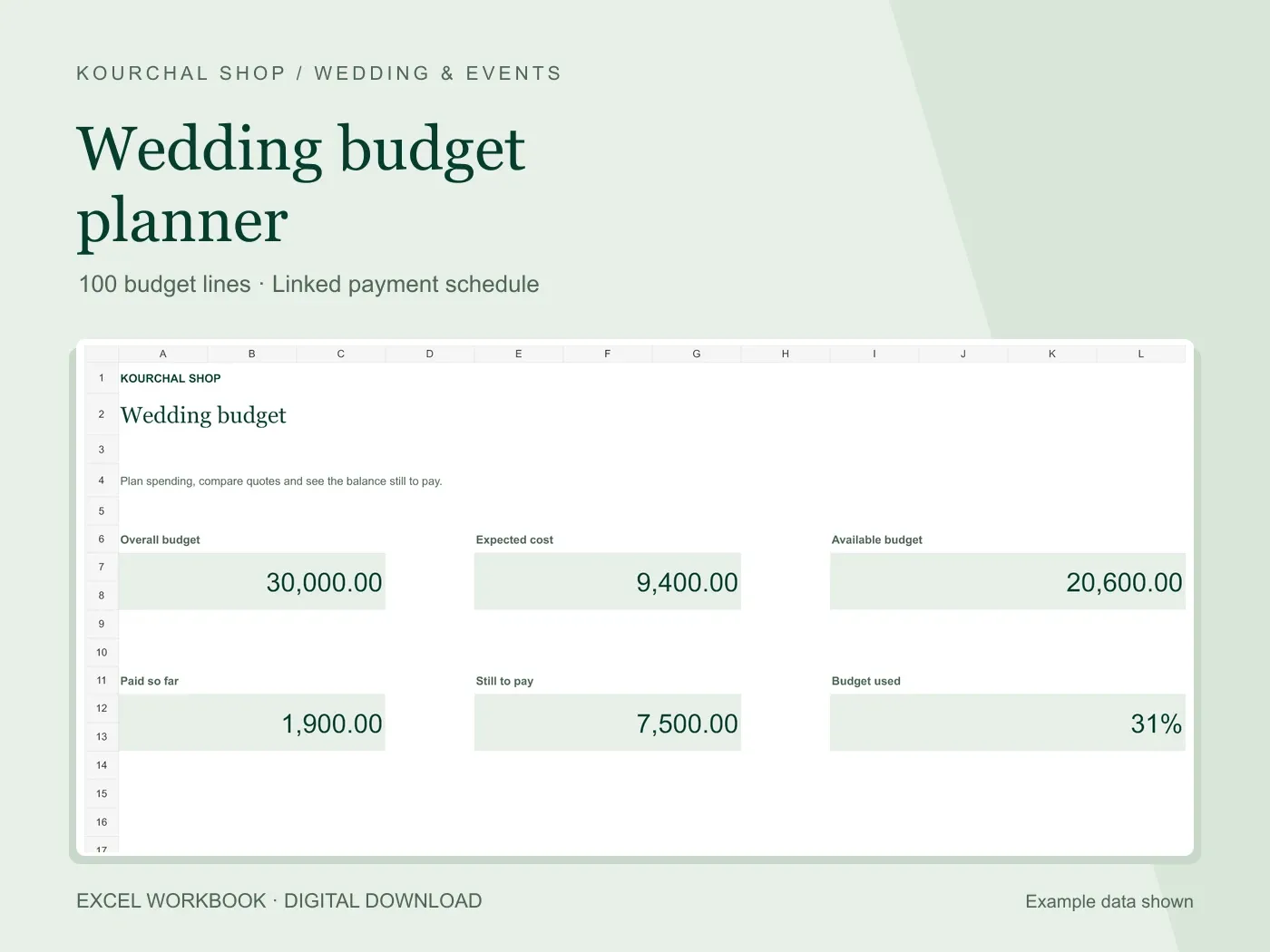
Our Wedding Budget Planner provides prepared budget rows, a linked payment schedule, a dashboard and Start Here instructions in an Excel workbook. It does not include this contributor-allocation or family-settlement system. Use the DIY layout if splitting contributions is your main requirement, and inspect the product previews before buying for the supplier-payment workflow. Google Sheets compatibility of the paid workbook has not been verified.
Before your next vendor payment.
A free wedding payment checklist to help you check what is agreed, what you have paid and what is due next.
- Check the agreed cost.
- Account for payments already made.
- Confirm the next amount and due date.
A printable checklist, separate from our paid Excel workbooks. No purchase needed.