A wedding vendor comparison spreadsheet puts suppliers from the same category beside the same requirements: date, location, work included, total quoted cost and unresolved questions. Compare the complete service you need before comparing the headline prices. Leave an unknown charge visibly unresolved rather than treating it as free.
This guide shows a DIY Excel layout for the decision before booking. It is separate from tracking payments after you choose a supplier. The numbers below are fictional examples in one currency, not estimates of local wedding prices.
Start with one brief for every supplier
Write down your event date, location, required hours or quantities, access arrangements and expected deliverables. Send the same requirements to each supplier. A six-hour package and a four-hour package need a scope adjustment before the totals tell you much.
Keep different categories in separate comparison groups. Compare catering proposals with catering proposals, rather than ranking a photographer against a florist. Within each group, decide which requirements are essential before looking at the lowest price.
Set up the comparison columns
- A: Supplier name.
- B: Base quote for the agreed brief.
- C: Required extras not already included in the base quote.
- D: Other confirmed charges not already included, such as a stated delivery fee.
- E: Confirmed reduction not already reflected in the base quote. Use 0 when none applies.
- F: Comparable total, calculated from B through E.
- G: Availability and scope check.
- H: Quote date or validity deadline.
- I: Questions and next follow-up.
Enter numeric amounts in B through E. Keep currency symbols in the cell formatting. Use one currency throughout, and ask suppliers to confirm whether each total includes applicable charges. This worksheet does not calculate tax rules or exchange rates.
Use 0 only after confirming that no additional amount belongs in that column. Leave a genuinely unknown price blank, and record the question in I. Do not add an included delivery charge a second time. The point is to account for each required cost once.
Use a total that flags missing prices
Put this formula in F2, then copy it down the supplier rows:
=IF(COUNT(B2:E2)<4,"Check missing prices",B2+C2+D2-E2)
COUNT checks that all four input cells contain numbers. A missing amount or a number stored as text produces a check message instead of an apparently complete total. Confirmed zeros count as numbers. English Excel uses commas in this formula; some regional settings use semicolons.
The check cannot decide whether you entered the correct amounts or misunderstood a proposal. Review the scope notes and supplier confirmation as well as the calculated result. Keep any row with an unresolved question out of a final price ranking.
Microsoft documents how COUNT counts numeric cells.
The IF function chooses between the check message and the calculated total.
Compare three illustrative quotes
- Supplier A: base 2,400; required extra hours 300; separate confirmed delivery 100; reduction 0. Comparable total: 2,800.
- Supplier B: base 2,650; required extras 0 because the requested hours are included; separate delivery 0 because delivery is included; reduction 0. Comparable total: 2,650.
- Supplier C: base 2,300; extra hours not yet priced; separate delivery 100; reduction 0. Result: Check missing prices.
Supplier A has the lower base quote, but B has the lower complete total for this fictional brief. C is unresolved. You cannot call C the cheapest complete option while required hours are still unpriced.
A lower complete total is one decision input. Check availability, exact deliverables, access requirements and whether the supplier can provide what your event needs. Write down the reason for your choice so the comparison remains understandable later.
Keep deposits separate from the price comparison
A deposit is often part of an agreed total, rather than another charge to add on top. In an illustrative agreement with a total of 2,650 and an included deposit of 650, paying the deposit leaves 2,000. The service has not become 3,300 simply because you paid the first installment. Check the actual agreement to identify what each amount represents.
Once you choose a supplier, move the agreed total, actual payments and due dates into your payment record. The wedding vendor payment tracker guide covers that later stage.
Do not total every alternative quote as committed spending. Retain the comparison as a decision record, then add the selected supplier to your main budget. Keep an estimate for an unbooked category without counting it again alongside the booked quote.
Use the budget workbook after making the comparison
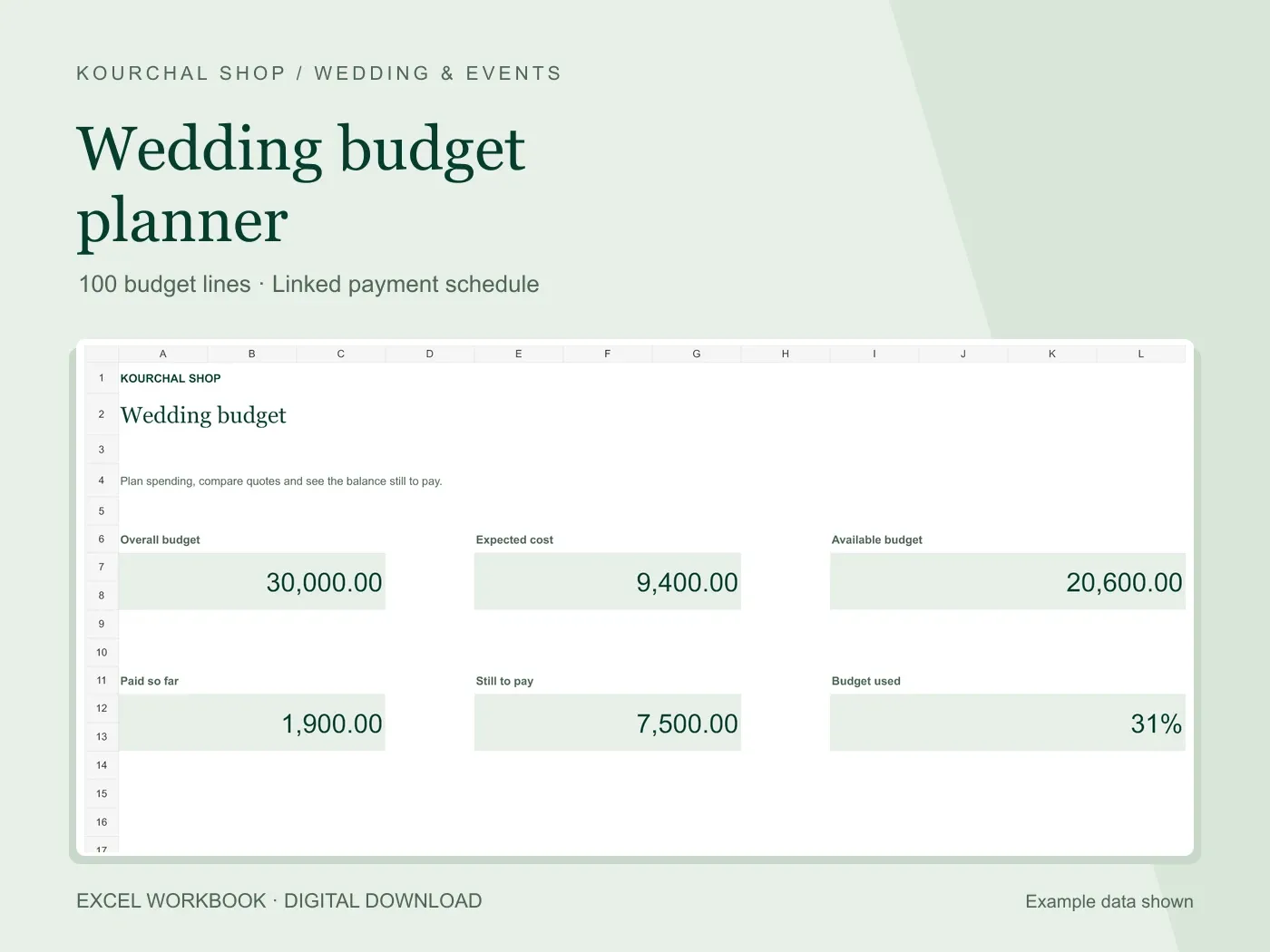
The Kourchal Wedding Budget Planner records budget lines, estimates, quotes, deposits and additional payments, with a linked payment schedule. It does not include the multi-supplier comparison sheet described here; build that DIY sheet separately if you need it.
For the next step, use our Excel wedding budget setup guide to connect your chosen quotes to the overall plan.
Quick answers
How do I compare wedding vendor quotes fairly?
Ask for the same requirements, check the included work and compare confirmed complete totals. Keep missing prices and unanswered scope questions visible before choosing.
Should a blank price be entered as zero?
No. Blank means unresolved in this layout. Zero means you have confirmed no extra amount is due in that field.
Does the cheapest quote mean the best supplier?
The sheet compares recorded scope and cost. You still need to decide whether the supplier, deliverables and availability fit the event.
Before your next vendor payment.
A free wedding payment checklist to help you check what is agreed, what you have paid and what is due next.
- Check the agreed cost.
- Account for payments already made.
- Confirm the next amount and due date.
A printable checklist, separate from our paid Excel workbooks. No purchase needed.